

✨ Magic Buttons - 4 Ways to be Click Happy on Substack!
How to add and use custom buttons on your Substack publication to encourage clicks and engage your best fit readers and paid subs.

Hi all,
Engagement metrics are my soul food - honestly I love going back over older posts and seeing what broke the fourth wall. Clicks are often silent - not everyone presses the like or restack button. Open rates are cool yes but I tell you what’s ICE COLD - you can quietly see what’s been happening with clicks!
If you’re a business owner, your job is always to take your reader deeper into your offer suite. If you’re looking to grow paid subs you want to keep unpacking the value for your subs and encourage them to pay. There are a million and one ways to do this but let’s get into the options for clicks and buttons first!?
Let’s take a look at your metrics…
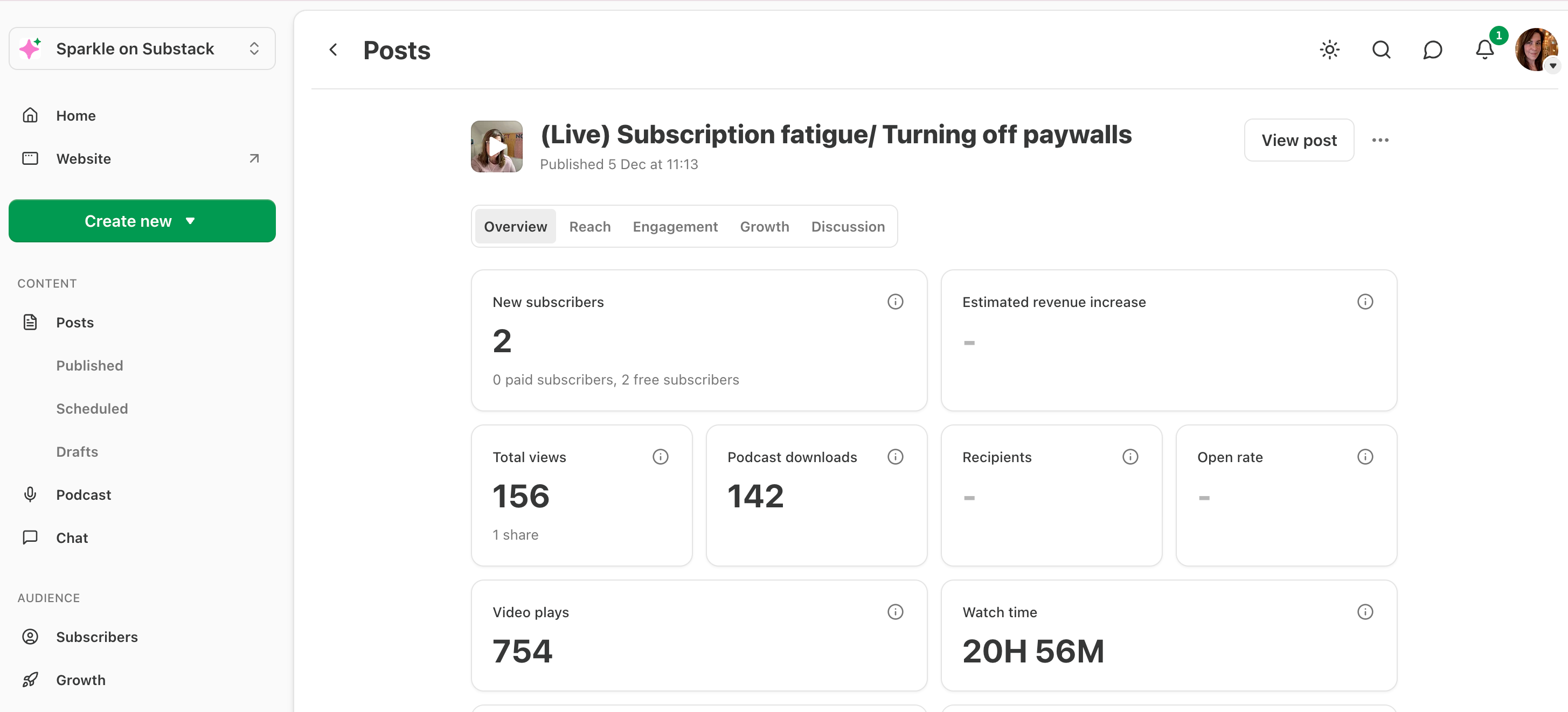
To do this you want to go to your dashboard - content - posts - then click Engagement, in here you’ll see click through rate and how many people clicked each link.
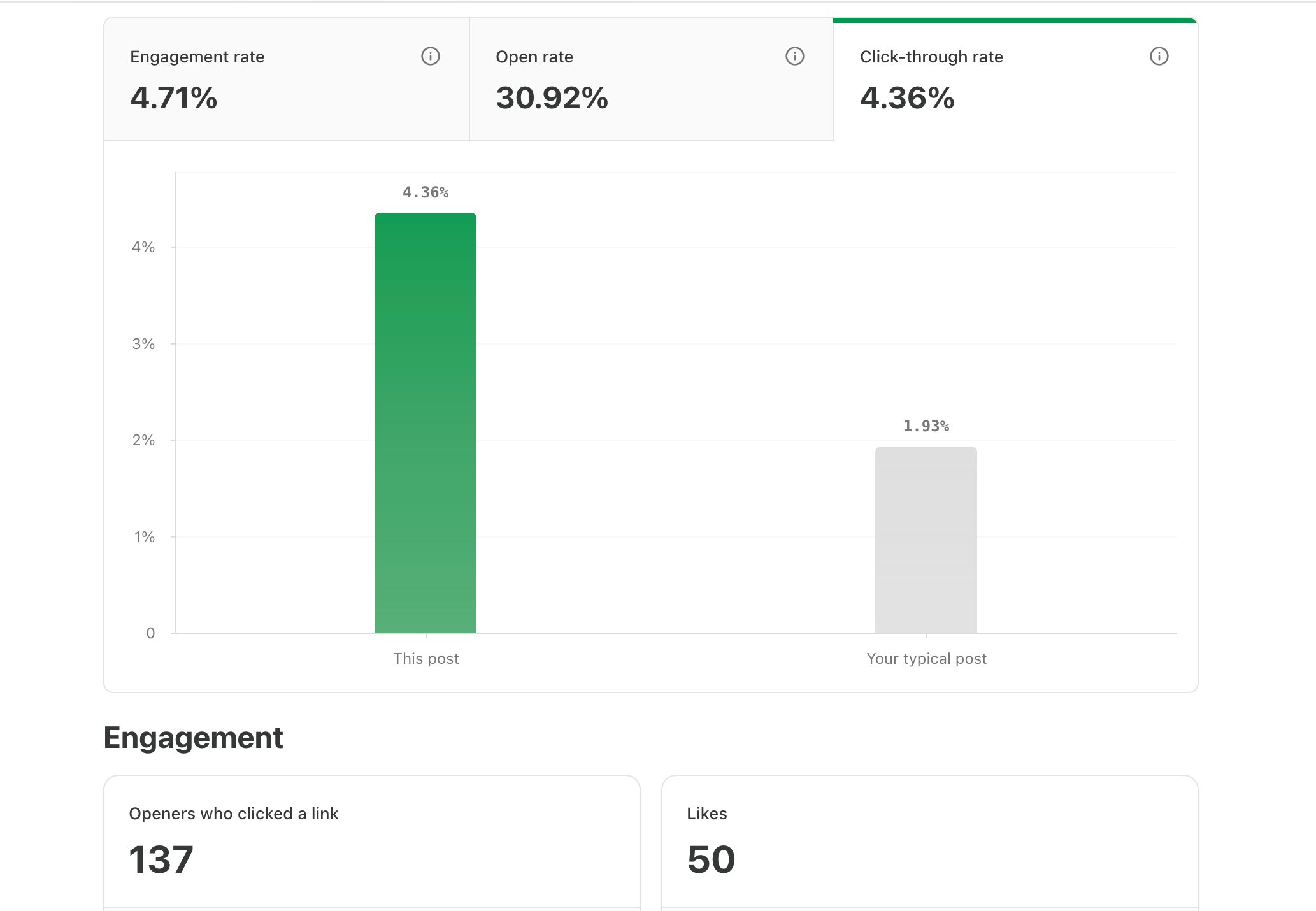
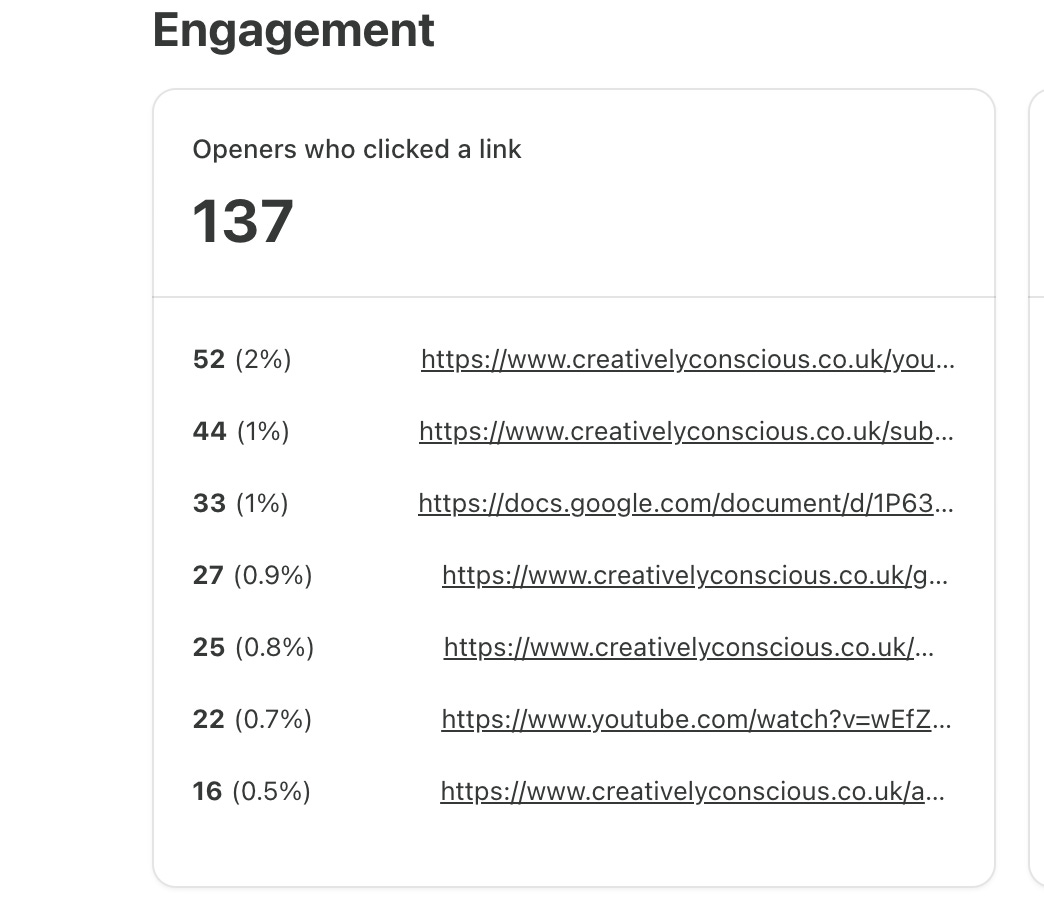
I often find the first and the last links in a post are most popular so if you really want to get your subs to do something, bear that in mind - you can repeat the same links with different calls to action…
Here are 4 ways with links/ buttons…
1. Embed a link in an image
Did you know you can hyperlink an image here? That means you can add an image from your library - select it, press the little paper clip tool and add a link.
Like this…
Add a caption to make it more obvious or design the image so it says CLICK ME or something similar.

2. Custom Buttons
You can use Substack’s custom buttons and add your own text. Think about accessibility and use clear messaging… which one stands out to you and why?
If you think they need more explanation, you can add that in your copy above?
Make your own buttons in canva.
Tips
You want to download these with a transparent background. These have a square background but you could leave more space. Here’s the template link (you’ll need a pro canva account -
If you want the subscribe page you need /subscribe at the end of your substack url
If you want the account management page to help folks toggle sections on and off it’s /account
To share your subscribe with the gift option it’s /gift


The Good Ole Hyperlinked Text.
So easy! Select the text you want to link then press the paperclip button above - done, quick easy, no hassle!! You can have underlined links like mine or colours… I’m going to switch back to colour I think.
To change yours go to dashboard settings, branding then design and typography.


I hope this has sparked ideas for you… let me know if you’re going to try any of these ways to stay creative with your Substack!?
Claire
✨
P.S - there’s a whole host of tutorials and live classes in my membership - you are super welcome to upgrade to join us.